 AgoraVox Italia
Start a WordPress blog or create a free website in seconds. Choose from over 200 free, customizable themes. Free support from awesome humans.
http://www.imhoffpress.worpress.com
Articoli
-
12 Top WordPress Themes People Actually Use in 2026 (Tested & Ranked)
26 gennaio, di Rochi Zalani — Tips and Tutorials, Design, Themes, WordPress, wordpress-com
A great theme makes building your WordPress site feel effortless.
I went through the most popular options on WordPress.com — based on real usage data — and tested each one.
From personal blogs to online stores, I looked at what works best for different types of sites.
Here are the 12 best WordPress themes worth considering in 2026.
TL;DR: The best WordPress themes
Here are our top picks of WordPress.com themes based on real usage data from WordPress.com:
- Twenty Twenty-Four: Best for content-focused sites.
- Retrospect: Best for photography websites.
- Twenty Twenty-Three: Best for getting a flexible starting point
- Twenty Twenty-Five: Best for building an adaptable, creative site
- Zoologist: Best for all types of blogging websites
- Hey: Best for personal blogging
- Tsubaki: Best for ecommerce websites
- Fewer: Best for portfolio sites
- Poema: Best for poetry or pure text sites
- Nook: Best for hobby and community-driven sites
- Aether: Best for small business sites
- Vivre: Best for magazine sites.
Pro tip: Set up and customize your site in minutes with our AI website builder, using simple text prompts to define the layout and visual look.
1. Twenty Twenty-Four
- Best for: Content-focused sites
- Price: Free
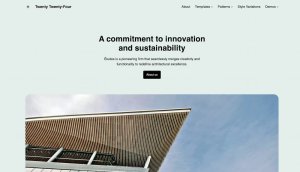
Twenty Twenty-Four is a great WordPress theme for beginners who want a clean, simple, and minimalist design.
It’s one of the most popular themes in the WordPress.com universe, with 9.78% of sites using it based on our data.
The theme’s simple yet powerful features make it perfect for content-focused sites, such as blogs and portfolio sites.
My experience
Right from the start, I loved the styling options. The typography and color choices are excellent and offer a lot of diversity.
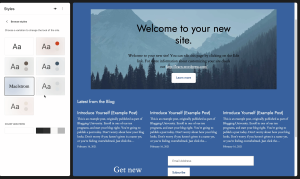
Each option looks elegant and professional. You can easily pick one that fits your brand and tweak it to your liking.
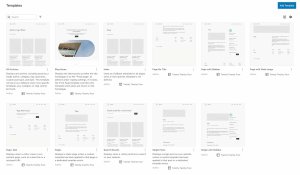
I also liked the template options.
They felt especially geared toward content-heavy sites, with layouts for pages with sidebars, index pages, blog homepages, and single posts.
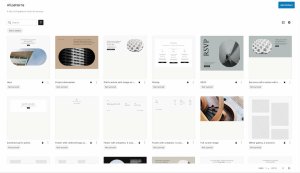
Twenty Twenty-Four also comes with over 200 patterns — predesigned blocks you can drop into your pages.
I found them helpful for building layouts quickly without starting from scratch.
Choose this theme to:
- Build a content-heavy site, such as a blog or personal writing website.
- Showcase your creative work.
- Create a clean, minimal, and modern design.
2. Retrospect
- Best for: Photography websites
- Price: Free

Retrospect is a perfect WordPress theme for photographers. It displays images at full resolution alongside your post content.
Over 5.93% of WordPress.com users choose this theme for photo blogs and visual-first sites.
My experience
I liked the minimalist approach of the Retrospect theme. It’s a strong choice for art, travel, or photography blogs, where the focus should stay on visuals.
The layout is distraction-free, so your images can shine without clutter.
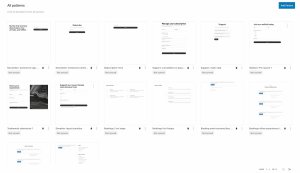
It also comes with patterns for newsletter sign-up, booking forms, and contact sections.
Setup is fast and intuitive. On mobile, images still look sharp without taking over the whole screen.
Choose this theme to:
- Build a visual-first site, whether that’s a photo journal or personal blog.
- Run a low-maintenance site that’s easy to set up.
- Create a clean, distraction-free layout.
3. Twenty Twenty-Three
- Best for: Getting a flexible starting point
- Price: Free

Twenty Twenty-Three is a minimalist theme that gives you a clean starting point without heavy styling.
It offers plenty of style variations, but the base design stays flexible — more blank canvas than finished product.
About 5.53% of WordPress.com users choose this theme.
My experience
I liked the style variation options in this theme. The color palettes and typography options are vastly different from one another, making it easy to match the look to different kinds of sites.
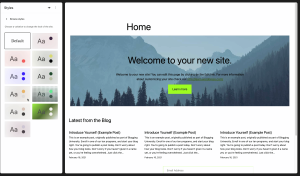
If you’re building a simple one-page website, the template library and patterns make it easy to get started.
The minimal base also gives you room to experiment, which is great when you want more creative control over the design.
Choose this theme to:
- Create a minimal design without heavy styling.
- Maintain full creative control over your website’s design.
4. Twenty Twenty-Five
- Best for: Building an adaptable, creative site
- Price: Free

Twenty Twenty-Five sits at the cusp of a blank canvas and a fully designed premium theme.
It hits the right balance if you want something that looks and feels polished but is still easily customizable to your needs.
This theme is chosen by 3.83% of WordPress.com users.
My experience
My favorite part about this theme is the new and improved patterns.
There’s a wide variety of choices, from online store layouts to poster-style sections and event RSVP blocks.
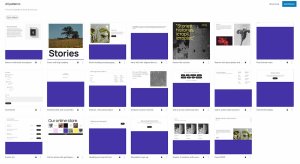
No matter what type of site you’re building, you’re guaranteed to find something valuable here, which makes it a strong choice for beginners and more advanced users.
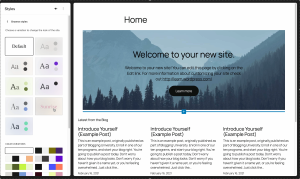
The style variations are also ready to use. You can switch between different color palettes and typography options without extra tweaking.
The bottom line: Twenty Twenty-Five sits between Twenty Twenty-Four, which is more specialized toward blogging with a clearly defined design, and Twenty Twenty-Three, which is broader and more open in its design.
Choose this theme to:
- Gain a versatile base for many kinds of sites.
- Build pages visually using patterns and templates.
- Customize the appearance of your site easily.
5. Zoologist
- Best for: All types of blogging websites
- Price: Free

Zoologist is an ideal theme for all sorts of blogging websites.
The single-column layout displays your posts in a clean, linear format, with no sidebars or distractions.
My experience
Zoologist has strong blogging roots.
To me, it felt like a great choice for anyone publishing long-form, whether that’s a business blog, a personal website, or a journal.
You can choose from several color variations to customize the visual design of your site.
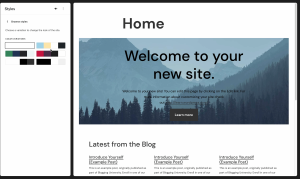
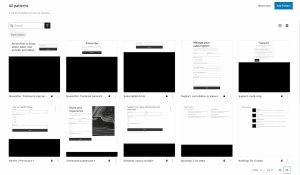
The theme also offers templates and patterns similar to Twenty Twenty-Four, which help you add essential elements such as newsletter sign-up forms and waitlists.
My favorite part of this WordPress theme: It has little noise, with no unnecessary bells and whistles — just set it up and start publishing.
Choose this theme to:
- Publish content using a simple, clean, single-column layout.
- Build a straightforward blog or content-centric site.
- Create a lightweight, minimal design.
6. Hey
- Best for: Personal blogging
- Price: Free

If you want a site that feels like your creative playground but is still easy to use, it doesn’t get better than the Hey theme.
It’s designed for personal blogging and keeps things simple with a ready-to-go setup.
My experience
The Hey theme instantly reminds me of a personal diary or journal. It works well for founder or artist notes or for logging your creative progress.
The focus is purely on the reading and writing experience, with no extra frills or complex customization options.

Choose this theme to:
- Get your website up and running quickly.
- Prioritize readability and simplicity over fancy layouts.
- Create a blank-canvas feel with generous whitespace.
7. Tsubaki
- Best for: E-commerce websites
- Price: Available on the Business plan ($25/month on the annual plan)

If you’re building an online store, Tsubaki is a WordPress theme worth considering.It’s designed for e-commerce and integrates seamlessly with WooCommerce, so your store, blog, and site all live in one place.
My experience
Tsubaki is built around e-commerce from the ground up.
The layout, navigation, and structure all support product displays and shopping flows.
The patterns are e-commerce-focused, with options for product categories, new arrivals, checkout sections, and more.
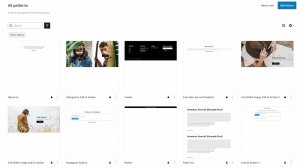
The additions don’t detract from the core blogging features, though. You can use this theme to host your blog while selling your physical or digital products.
Choose this theme to:
- Build an online store or e-commerce site.
- Combine shop and blog content on one site.
- Use WooCommerce with an e-commerce-friendly layout.
8. Fewer
- Best for: Portfolio sites
- Price: Free

Fewer’s clean content presentation and project-driven focus, which combine text and visuals neatly, make it an excellent choice for building portfolio sites.
Its design is clear and readable without being noisy, which helps keep the spotlight on your work.
My experience
I was immediately impressed by Fewer’s style variations.
The designs are versatile but not so loud that they shift focus away from the projects you want to highlight.
I found the typography especially clean and balanced.
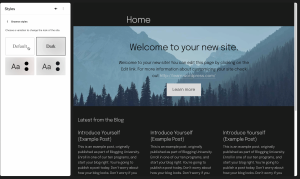
Fewer is a solid choice if you want an elegant, content-first site that displays your work with minimal clutter.
While it’s great for portfolio sites, it’s also flexible enough to work for business or blog sites.
Choose this theme to:
- Take advantage of style and typography variations.
- Build a blog, portfolio, or content-driven site.
- Keep the focus on your content or visuals through good typography and design.
9. Poema
- Best for: Poetry or pure text sites
- Price: Free

Poema is a simple black-and-white text site built in honor of writer and poet Fernando Pessoa.
It’s designed to focus 100% on the writing material, with no visuals or design elements overpowering the text.
Poema is perfect for poetry sites, personal journals, or anywhere writing needs to take center stage.
My experience
Entering the Poema theme feels like opening a poetry book.
The design is clean and clutter-free — just your words on the page. The layout feels classic and literary, with serif fonts, neutral colors, and lots of whitespace.
Despite the name, it works just as well for long-form essays, journal entries, or personal reflections.
Choose this theme to:
- Create an elegant site focused on typography and reading.
- Set up a simple site that’s easy to maintain.
- Publish writing without complex layouts
10. Nook
- Best for: Hobby and community-driven sites
- Price: Free

Nook uses a classic two-column layout with a sidebar structure, giving it a familiar blog feel.
It’s a strong choice for someone creating a personal site, food blog, journal, or craft-focused blog.
My experience
Nook has a warm, nostalgic blog feel.
If I were building a site for fun or to explore a hobby, this is the theme I’d pick. It’s great for getting creative and connecting with people who share your interests.
The templates and patterns are especially helpful if you’re a beginner or want to get started quickly.
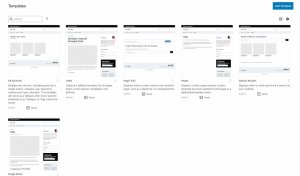
I also liked the overall familiarity of the theme. Everything feels intuitive — easy to set up for you and easy to navigate for your visitors.
Choose this theme to:
- Create a classic two-column blog layout with a sidebar.
- Design a warm, comfortable, and timeless site.
- Build a blog or personal site.
11. Aether
- Best for: Small business sites
- Price: Available on the Premium plan ($8/month on the annual plan)

Aether is a great WordPress theme for small-scale stores that want to weave storytelling into their business site.
It’s particularly suitable for handcrafted goods, boutique products, or small merch brands, wher
-
Connect AI Agents to WordPress.com with OAuth 2.1 and MCP
22 gennaio, di Eoin — Tips and Tutorials, developers, WordPress.com In October, we announced that WordPress.com now supports MCP (Model Context Protocol), enabling AI agents to interact with your sites.
Today, WordPress.com supports OAuth 2.1, making MCP integrations simpler.
MCP clients work natively with OAuth 2.1, so authorizing the AI tools you already use is as straightforward as adding a URL and approving access — no workarounds or manual configuration required.
With MCP, AI agents can help with everyday tasks on your WordPress.com site, such as finding posts, pulling site details, or drafting new content, while you control what they can access.
How OAuth 2.1 powers MCP integrations
When an AI assistant (like Claude Desktop, ChatGPT, or a custom AI tool) wants to access your WordPress.com content, OAuth 2.1 now handles the secure connection:
- The MCP client requests authorization.
- You’re redirected to WordPress.com to approve the connection.
- After approval, the client receives secure tokens.
- The client uses those tokens to access the WordPress.com MCP.
- Tokens refresh automatically as needed.
All of this is protected by PKCE (Proof Key for Code Exchange).
Even if someone intercepts the authorization code, they can’t use it without the secret verification code that stays on your device.
Simple setup: Just add a URL
WordPress.com provides an MCP server that AI tools can connect to using OAuth 2.1.
All you’ll need to do is:
- Create a custom connector or app in your AI tool
- Add the WordPress.com MCP server URL
- Authenticate and approve access through WordPress.com using OAuth 2.1
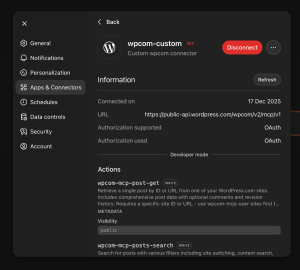
That’s it.
WordPress.com handles authentication and permissions, so there’s no manual credential setup and no passwords to share.
Tip: View the MCP connection guide in the developer documentation for Claude Desktop and ChatGPT–specific instructions.
What MCP clients can do with WordPress.com
Once authenticated, MCP clients can interact with your WordPress.com sites through the MCP API:
- Search and retrieve posts: Find content across your sites
- Read post details: Access full post content, metadata, and comments
- Access site information: Get site settings, statistics, and user data
All of this happens with the permissions you’ve explicitly granted, and you can revoke MCP access at any time from your WordPress.com MCP settings.
Get started with MCP and OAuth 2.1
OAuth 2.1 is available now for all AI agents to connect to WordPress.com.
Whether you’re building a custom integration or using existing MCP-compatible AI tools, it provides the secure authentication foundation for your work.
If you haven’t already, enable MCP on your WordPress.com account to start connecting your AI assistants.
Useful resources
- WordPress.com MCP documentation
- Available MCP tools reference
- MCP prompt examples
- Model Context Protocol documentation
Share Your Feedback
We’d love to hear how you’re using OAuth 2.1 and MCP with WordPress.com. Have questions or suggestions? Drop a comment below or share your experience in the developer forums.
-
Introducing the Enhanced Code Block: Syntax Highlighting and More
19 gennaio, di Justin Tadlock — Development, Product Features, Tips and Tutorials, Customization, WordPress, wordpress-com Last year, WordPress.com introduced new code editors for the block editor and the Additional CSS input box in the WordPress admin. This was the first stage of a larger effort to make editing code a more enjoyable experience.
Today, I’m happy to announce the launch of the second stage of that effort: introducing the new and improved Code block.
This is not a new block. It’s an enhancement to the current Code block that you’ve likely already been using, which includes several improvements over the original:
- Syntax highlighting: Supports color-based syntax highlighting for over 100 common languages.
- Configuration: Decide to show the filename, language name, line numbers, and even include a copy button for visitors.
- Drag-and-drop: Dragging a code file from your computer to the editor will automatically transform it to the Code block with the language set.
- Transforms: Transform other code-supported blocks on WordPress.com, such as Syntax Highlighter, to the new Code block.
- Styles: Customize syntax colors directly from the editor or via ‘theme.json’ if you’re a developer.
Using the enhanced Code block
You do not have to enable anything to begin using the new version of the Code block. It’s already available to use. Just insert the Code block anywhere in the block editor and add your code.
By default, when adding a Code block and inserting code, you will see your code in Plain Text:
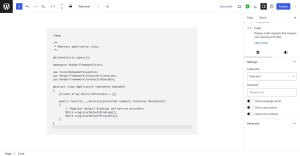
Of course, Plain Text doesn’t include any syntax highlighting since it’s not a language. To change this, choose a code language from the Settings → Language dropdown in the sidebar:
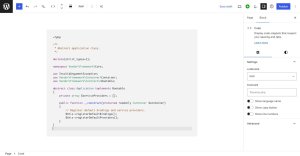
Syntax highlighting will then be applied based on the language that you selected, making the code much more readable for both you and your visitors!
Pro tip: If you type three backticks followed by the language name (e.g.,
```php) and then hit Enter, the editor will automatically create a new Code block instance and auto-fill the Language setting.If you want to kick your Code block’s features up a notch, you can also configure several other settings besides the language:
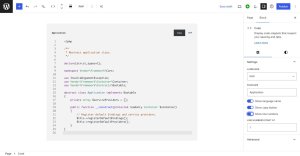
- Filename: Add a custom filename to display in the top left of the code block (useful when walking readers through tutorials).
- Show language name: Displays the language name in the top right corner of the block.
- Show copy button: Inserts a Copy button in the top right of the block, allowing site visitors to copy the entirety of the code.
- Show line numbers: Displays line numbers next to your code on the left.
- Line numbers start at: Choose a starting line number.
This will make your site’s code examples much more reader friendly:
Customizing the Code block colors
There are multiple ways to customize the syntax highlighting and colors shown with the enhanced Code block. In this section, I’ll walk you through each from the quickest/simplest to the more advanced techniques.
Selecting a block style
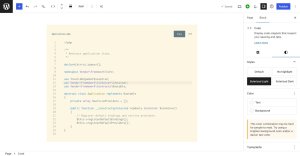
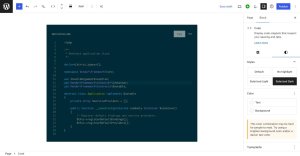
The Code block ships with four block styles out of the box:
- Default: Will use the default styles and colors from your theme.
- No Highlight: Disables syntax highlighting.
- Solarized Light: A light color scheme.
- Solarized Dark: A dark color scheme.
Themes can also register additional styles. Selecting one of these styles is the quickest way to change how your Code block is output:
Customizing colors from the editor
You can also customize the colors directly from the editor via the Styles → Color panel in the block sidebar. The block has an extensive array of color options for customizing every aspect of the syntax highlighting:
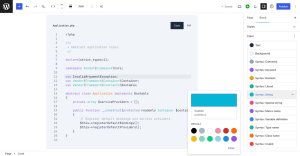
You are not limited to only colors either. You can customize any of the other available styles, such as Typography, Border, and more. These options haven’t changed with the latest enhancement.
Customizing the Code block via theme.json
If you’re a developer or theme author, you’ll most likely want to define default syntax colors and other styles for the default output of the block.
theme.jsonsupport is included with this batch of enhancements.Here’s what my custom Code block styles look like after a few tweaks in
theme.json: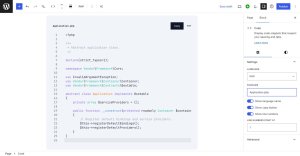
Because the WordPress software itself doesn’t support custom colors via
theme.json, the developers at WordPress.com built in custom support for this feature.You can customize any of the syntax colors via
settings.custom.core/codeintheme.json. This is an object where each key is the syntax color name and the value is the color itself.Here’s an example snippet that you can use to customize your own colors:
theme.json{"$schema": "https://schemas.wp.org/trunk/theme.json","version": 3,"settings": {"custom": {"core/code": {"comment": "#94a3b8","keyword": "#8b5cf6","boolean": "#f59e0b","literal": "#10b981","string": "#06b6d4","specialString": "#ec4899","macroName": "#8b5cf6","variableDefinition": "#3b82f6","typeName": "#14b8a6","className": "#f97316","invalid": "#ef4444"}}}}Any valid CSS color is supported, so you’re not limited to hex color codes. Use CSS custom properties, RGBA, and more.
If you want to borrow my full
theme.jsoncustomizations, copy and paste the following code. It includes additional custom styles to make the Code block even nicer:theme.json{"$schema": "https://schemas.wp.org/trunk/theme.json","version": 3,"settings": {"custom": {"core/code": {"comment": "#94a3b8","keyword": "#8b5cf6","boolean": "#f59e0b","literal": "#10b981","string": "#06b6d4","specialString": "#ec4899","macroName": "#8b5cf6","variableDefinition": "#3b82f6","typeName": "#14b8a6","className": "#f97316","invalid": "#ef4444"}}},"styles": {"blocks": {"core/code": {"border": {"color": "#e2e8f0","style": "solid","width": "1px","radius": "8px"},"color": {"background": "#f1f5f9","text": "#1e293b"},"typography": {"fontSize": "15px"}}}}}Start sharing code now.
Whether you’re publishing snippets or full-blown tutorials, the enhanced Code block makes sharing and styling code in WordPress.com smoother and more customizable than ever before.
Syntax highlighting, block styles, and custom color options put you in full control of how your code appears.
With these improvements, you can focus less on formatting and more on writing great content that helps your readers learn and build.
-
What is Managed Hosting? A Practical Guide
13 gennaio, di Anam Hassan — Tips and Tutorials, Managed Hosting, WordPress, wordpress-com Managed hosting means your hosting provider takes care of the technical maintenance of your website, including updates, security, and performance.
I didn’t realize how much that mattered until I built my first site. I thought my job was just to write and publish — then the updates, security alerts, and performance issues started piling up.
In this guide, I explain what managed hosting includes, how it compares to regular hosting, and its advantages.
What is managed hosting?
Managed hosting is a type of web hosting where the provider takes care of the technical work behind your site for you.
Instead of dealing with things like updates, security, and ongoing maintenance yourself, you rely on the host to handle them.
Here’s what you typically get:
- Automatic updates: The host takes care of important system and platform updates in the background.
- Security monitoring: Your site is checked for security issues and protected against common threats.
- Regular backups: Backups are handled automatically by the host, making it easier to recover your site if something goes wrong.
- Performance optimization: The host handles speed-related setup and optimizations to help your site load faster.
- Uptime monitoring: Your site is monitored to make sure it stays online, and issues are caught early.
Tip: WordPress.com offers managed hosting out of the box. The technical setup is handled for you, so you don’t need to worry about maintenance or configuration.
Managed hosting vs. unmanaged hosting
The key difference is who handles the technical work. With managed hosting, your provider takes care of it; with unmanaged, you do everything yourself.
This applies across hosting types — VPS, dedicated, cloud — as any of them can come in a managed or unmanaged version.
In practice, managed hosting gets you up and running faster and keeps the technical workload off your plate long-term.
Here’s how the two compare across key areas:
Feature Unmanaged hosting Managed hosting Technical setup & management You install software, configure the server, secure it, and keep everything updated. Your provider manages setup, configuration, updates, security, and ongoing maintenance. Maintenance You manage backups and troubleshoot issues yourself, often using plugins or external tools. Your host takes care of backups, monitoring, and security tasks. Performance Performance depends on how well the server is configured. Built-in optimization for faster, more reliable performance. Security You add protections manually. Built-in protections like SSL, firewalls, and malware scanning. Support General hosting support; expertise varies. Support teams are familiar with the platform your site runs on. For example, WordPress.com offers 24/7 expert support from specialists who know WordPress inside and out. When is managed hosting the right choice?
I recommend managed hosting if you want a reliable website without taking on the technical overhead of running it.
WordPress.com users, for example, often choose managed hosting so they can focus on building their site and publishing — not troubleshooting updates or security issues.
Here’s how managed hosting helps me day to day:
- No surprise maintenance tasks: Routine updates and server work happen automatically.
- Fewer disruptions: Issues are handled before you ever notice them.
- Stable, predictable performance: No juggling settings or extra tools.
- More time for real work: Publishing, designing, or growing your business takes center stage.
- Peace of mind: You’re not the one troubleshooting issues.
Key features of managed hosting to look for
If you consider opting for managed hosting, look for features that keep your site running smoothly with minimal maintenance.
These are the ones that make the biggest difference:
Server management
Check that setup, configuration, and ongoing server maintenance are included.
A managed host should give you a ready-to-use environment without requiring server knowledge, while still letting you access server settings when needed.
Performance optimization
Look for built-in performance features like caching and server-level tuning.
These help keep your site fast and stable, with less need for extra plugins or manual setup.
For example, WordPress.com includes server-level caching by default, so key performance optimizations are handled at the hosting layer.
Tip: If your audience is global, also check whether the host provides edge caching or a distributed data-center network. On WordPress.com, Global Edge Caching across 28+ data centers helps pages load quickly for visitors worldwide.
Security and backups
Look for built-in security protections and automatic backups that run without manual setup.
A managed host should handle malware scanning, firewalls, and regular backups so that you don’t need to worry about running scans or remembering backup schedules.
Tip: WordPress.com includes SSL certificates, malware detection, and brute-force protection on all plans. Business and Commerce plans add real-time backups with one-click restore and advanced security features.
Support and expertise
Check what the support team is trained to help with — for example, whether they have experience with your specific CMS.
Managed hosting often includes support that’s familiar with the software your site runs on, which can be helpful when issues go beyond basic hosting questions.
With managed WordPress hosting, this usually means access to WordPress-specific support.
Tip: All WordPress.com paid plans include direct support from WordPress experts. Business and Commerce plans also include priority 24/7 support.
Scalability and reliability
Opt for hosting that can handle traffic spikes and keep your site stable as it grows, without you having to manage servers or make technical decisions.
For example, WordPress.com runs your site across multiple locations worldwide, so pages load quickly for visitors everywhere.
When traffic spikes, the system automatically handles the extra load — and you don’t need to add any manual changes.
How to select the best managed hosting provider
The best managed hosting provider will make running your site easier and take most of the technical work off your hands.
Because “managed” can mean very different things depending on the provider, I recommend focusing on how much responsibility they take off your plate and whether they fit your setup.
Here are a few questions to guide your decision:
- How much technical work does the host handle for you?
The more setup, updates, and security they manage, the less you have to worry about.
- Is the hosting environment optimized for your platform — e.g., WordPress?
For instance, some hosts simply install WordPress on a generic server and leave the rest to you.
Others, like WordPress.com, are optimized for running WordPress, so your site runs faster and stays stable without extra tuning.
- What kind of support will you receive?
Support teams familiar with your website platform can solve problems faster and with less back-and-forth.
- Will the hosting grow with your site?
Your site should be able to grow and receive more traffic without forcing you to switch plans or providers. For instance, WordPress.com includes unmetered traffic on every plan, so your costs don’t increase as your audience grows.
- How transparent is the pricing?
Look for plans where essential features — like backups, security, and SSL — are included upfront, so you’re not surprised by extra charges as your site scales.
- Does the host keep your site online if something goes wrong?
Some managed hosts use a distributed infrastructure, so your site stays available even if a server in one region has issues.
For instance, during a recent AWS outage that took many websites offline, WordPress.com sites continued running without interruption:

Get started with WordPress.com managed hosting
If you’re building a site with WordPress, managed hosting can take a lot of work off your plate — from updates and backups to security and basic maintenance.
On WordPress.com, managed hosting is built in, so you don’t need to set up servers, install performance tools, or manage updates yourself.
That’s the setup I wish I’d had when I started. Once I made the switch, the updates, security alerts, and performance issues that used to eat up my time disappeared. Now I just focus on the site itself.
Sound like something you’d benefit from?
-
How to Choose WordPress Hosting: A Guide for Any Skill Level
8 gennaio, di Nick Schäferhoff — Tips and Tutorials, Managed Hosting, WordPress, wordpress-com If you want a website, you need hosting — a place to store your site files so people can access your pages.
Even though WordPress can run on almost any server, the hosting environment you choose affects performance, stability, security, and how much technical work you’re responsible for.
This guide gives you a simple framework to select the right WordPress hosting plan — whether you’re a first-time blogger, a small business owner, or an experienced agency user.
TL;DR: How to pick WordPress hosting for your needs
When choosing hosting for your WordPress site, focus on a few key factors like ease of management, speed, security, support, and budget.
For a quick overview, we’ve listed them in the table below:
Hosting priorities What to look for when choosing a provider Easy site management Managed hosting that handles updates, backups, and security for you. Site performance Optimized WordPress servers with guaranteed resources and built-in caching. Scalability Plans without traffic limits and easy upgrades as your site grows. Security Automatic backups, SSL included, and active malware/firewall protection. User friendliness One-click WordPress install and a clean, unified dashboard. Support quality 24/7 WordPress-trained support and assisted migration. Developer and agency needs Staging sites, SSH/CLI access, and multi-site management. Extra features Domain, email, premium themes/plugins included. Affordability Plans with transparent renewals, no hidden limits, and enough features for your needs at your preferred tier. Looking for WordPress hosting that covers all of the points above? WordPress.com brings them together in one managed platform.
Now, let’s break down how to choose the right WordPress hosting provider step by step.
1. Explore different types of WordPress hosting
First, you need to understand how different web hosting providers divide server resources — this affects your site’s performance, stability, and price.
Your website sits on a server with limited capacity, and each hosting model allocates those resources differently.
As a result, each hosting type offers a different balance of control, speed, and stability:
- Shared hosting: Your site shares a server with many others, which keeps costs low but may affect your website’s performance as traffic on other websites increases.
- VPS (Virtual Private Server): Fewer sites share the server, and each gets a set amount of resources, giving your site somewhat more consistent speed.
- Dedicated hosting: Your site uses an entire server on its own, giving you full control and the highest level of performance.
- Cloud hosting: Your site uses resources from multiple servers, which helps it handle traffic changes without the higher cost of a dedicated server.
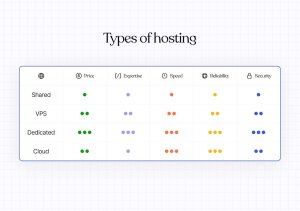
Tip: These hosting types explain how server resources are shared and how much raw capacity your site has access to. WordPress-optimized hosting, on the other hand, describes how that server environment is prepared specifically for WordPress — with the right software, settings, and defaults in place — so you don’t have to handle the technical configuration yourself.
2. Choose your level of hands-on management
Next, decide how much of the server setup and technical maintenance you want the host to handle for you.
Two different approaches exist:
- Managed hosting: Managed WordPress hosting providers like WordPress.com take over day-to-day tasks such as automatic updates for WordPress core, security, performance optimization, and backups.
- Unmanaged hosting: You’re responsible for setting up and maintaining the WordPress environment yourself, including updates, security, performance tuning, and backups.
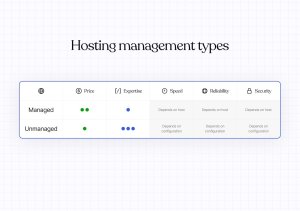
Managed WordPress hosting is often an ideal choice for beginners. It frees up time for more impactful work instead of routine maintenance.
However, experienced users can benefit from it too — especially when the managed plan includes the right developer features.
For example, WordPress.com Business and Commerce plans offer staging sites, WP-CLI, SSH access, and multi-site management, making them a strong fit for advanced users and agencies looking to focus on growth rather than hands-on management.
3. Prioritize core hosting features
The hosting environment you choose plays a big role in your site’s performance, security, ease of use, and the tools you have access to.
So make sure you understand which features matter most before making a decision.
Performance and stability
Pick a hosting plan that keeps your WordPress site fast and stable.
When too many sites share the same hosting resources, slowdowns and outages are more likely, especially during traffic spikes.
Hosting that limits resource sharing or can scale when needed tends to deliver more consistent performance.

Focus on these features when it comes to performance and stability:
- Fast storage: Faster storage helps your pages load more quickly. Look for hosting that uses SSD storage.
- Built-in caching: Caching saves parts of your site so repeat visitors can pick up where they left off.
- Uptime guarantees: Uptime is how consistently your website is reachable to visitors. The industry standard is at least 99% uptime.
- Servers close to your audience: Helps people in your desired region get faster load times.
- A global CDN: A Content Delivery Network stores copies of your site on servers around the world so people in other countries get quicker load times.
- Modern technology: The latest version of PHP and other server software help your site run smoothly and stay compatible with WordPress.
On WordPress.com, your site benefits from a 99.999% uptime guarantee, a global CDN and edge-cache network across 28+ data centers — plus a hosting environment configured specifically for WordPress.
Security and protection
From here, consider safety features that keep your site protected from hacks, malware, and downtime.
The best approach is to choose a provider that handles most of this for you, so you can focus on running your site instead of maintaining the infrastructure.
In particular, look for these features:
- SSL certificates: SSL/TLS encrypts data between the browser and server. Your host should include and set this up for free.
- Malware scanning and removal: Malware hurts both user trust and search visibility. You can add protection yourself or choose a host that includes it.
- Firewalls: A firewall blocks threats before they reach your site. It’s best when this is built in, since setting it up yourself takes extra work.
- DDoS protection: Distributed denial-of-service (DDoS) attacks flood servers with fake traffic to knock sites offline. Good hosts have protections in place to prevent this.
- Automated backups: Backups let you restore your site quickly if something goes wrong. You can handle this yourself or pick a host that automates it.
- Anti-spam filters: Comment spam is also common. Filters stop harmful links and content before they appear on your site. Similarly, you can configure this yourself or use a host that covers it.
All WordPress.com plans come with free SSL encryption, regular malware scans, and automatic software updates and backups. Additionally, your website is protected by a Web Application Firewall (WAF) and comes with one-click restore on Business and Commerce plans.
Ease of use and site management
Choose hosting that lets you manage your site from one place, without juggling multiple tools or dashboards.
With many hosting providers, managing a website means jumping between different systems that don’t work the same way.
You might handle hosting settings in one panel, manage your domain somewhere else, and use separate tools for performance, security, or analytics.
For beginners, this can become overwhelming fast. That’s why, on WordPress.com, nearly all of this happens in a single interface:
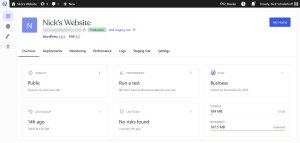
The custom-built control panel lets you manage everything — performance monitoring, logs, PHP version, SFTP/SSH accounts, caching, and more — without leaving your account or dealing with separate dashboards.
Support quality and availability
Whether you’re a beginner or not, having reliable hosting support makes a real difference when something goes wrong.
Ask these key questions about a potential hosting provider:
- Is support available for your timezone, including weekends and holidays?
- What’s the average response time?
- Do they offer live chat or ticket-only support? Are there other support channels?
- What’s the support depth? Do they help with server issues only or also troubleshoot WordPress-specific problems?
- How about onboarding and documentation? Does support help you migrate your website to them?
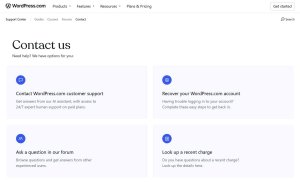
On WordPress.com, you get access to 24/7 expert support with a live chat, along with WordPress-specific guides, courses, and community forums.
It’s a mix of experts who know WordPress inside out and self-serve resources designed to help you learn and troubleshoot quickly.
Developer and agency tools
If you’re a developer or agency, look for hosting that supports features like multi-site management, automation, environment optimization, and professional workflows.
You may look for functionalities like:
- Staging sites: Create separate environments to test changes before deploying them.
- Command Line Interface (CLI): Manage WordPress installations from the console to save time, for example, by batching and automating tasks.
- Git/GitHub integrations: Enable version-controlled theme, plugin, and feature deployments. Revert changes easily if something breaks.
- Selective push/pull: Move only specific parts of a site between staging and production environments to save time.
- Multi-site dashboards: Manage multiple client sites from a single interface instead of juggling different logins.
- SSH access: Get secure, direct access to the server so you can administer files via the command line.
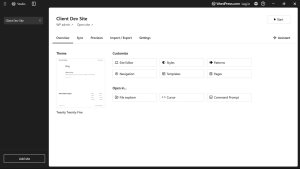
WordPress.com offers all of the above. Additionally, you can use WordPress Studio to spin up local WordPress sites in minutes, push and pull to and from production, and share preview links with clients.
4. Review additional features and extras
Beyond core hosting features, check what other tools and services the provider offers to make site management easier.
Here are some useful extras you might look for depending on your needs:
- Domain and email services: Being able to register a domain and set up branded email in one place to save time and resources.
- Premium themes and plugins: Access to premium WordPress themes, performance tools, or other extensions.
- Ecommerce and marketing tools: Built-in payment options, email marketing, or SEO features.
- Website builders and AI features: AI website building tools like our AI website builder, AI writing features, AI tools for web development, etc.
On WordPress.com, annual plans include a free domain for the first year, and you can set up a professional email with your domain. Each site also comes with premium plugins like Akismet and Jetpack already included, adding built-in tools for spam protection, analytics, social sharing, and more.
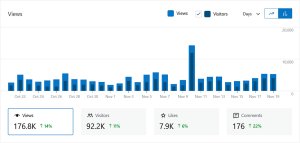
For example, you can use Jetpack Stats to track your site and visitor behavior without leaving the platform:
5. Compare your needs to your options
From here, compare providers based on how well they support your specific requirements.
Your hosting choice should match the type of site you’re building, the traffic you expect, and how hands-on you want to be with technical tasks.
Here’s what to consider:
- Website type: A simple one-page site needs far fewer resources than a complex, multi-language e-commerce store.
- Traffic expectations: A small hobby blog doesn’t require the same infrastructure as a news site that sees large, regular traffic spikes.
- Skill level and workflow: Beginners may want a simple setup, developers often prefer full control, and agencies need an easy way to manage multiple client sites.
WordPress.com hosting is flexible enough to accommodate a wide range of needs. Every site comes with unlimited traffic and visitors, theme designs for many purposes, and the ability to customize website functionality via plugins. Affordable plans allow you to start small and scale up later.
6. Clarify the real cost of your hosting plan
Finally, make sure you understand the long-term costs of your chosen WordPress hosting plan.
Pay special attention to renewal prices and any extra charges, including fees for essential features or going over bandwidth or traffic limits.
Check for the following:
- Initial pricing vs renewal rates: It’s common for hosts to advertise lower first-term rates that significantly increase at renewal.
- Charges for traffic overages: Many hosting plans include bandwidth or visitor limits. If you exceed them, you may be charged incremental extra fees. This can add up quickly when one of your blog posts goes viral.
- Unclear resource limits: Shared hosting often advertises “unlimited” resources, but may throttle or shut down your site if it consumes too much processing power.
- Hidden fees: Watch out for extra charges such as for SSL certificates, backups, restores, or malware cleanups.
The good news: All WordPress.com plans include unlimited bandwidth, unlimited visitors, and a clear, bundled pricing structure with no hidden fees.
WordPress.com: A great choice for most WordPress hosting needs
Your hosting should match your goals, budget, and skill level, and offer the level of hands-on management you’re comfortable with.
Once you’ve compared your options, the best next step is to get started — you’ll understand hosting much better once you’re working with it.
That’s where WordPress.com fits in: it offers a managed WordPress environment that works for a wide range of users.
Beginners get automated security, performance, and updates with expert support, while advanced users have access to staging sites, WP-CLI, SSH, multi-site management, and WordPress Studio for local workflows.


 RSS 2.0