 AgoraVox Italia
Start a WordPress blog or create a free website in seconds. Choose from over 200 free, customizable themes. Free support from awesome humans.
http://www.imhoffpress.worpress.com
Articoli
-
Introducing the WordPress AI Assistant — Now Built Into WordPress.com
17 febbraio, di Ronnie Burt — Changelog, News, Product Features
The WordPress AI Assistant is now available on WordPress.com.
If you’ve used our AI website builder, you already know how easy it is to create a full site by having a conversation. Now, that same intelligence stays with you inside the editor and Media Library.
Unlike standalone AI tools, the WordPress AI Assistant works inside your site. It understands your content and layout and can take action where you’re already building — no copy-pasting, no prompt engineering, and no code to figure out what to do with.
Sites on WordPress.com’s Business or Commerce plans can now opt into the WordPress AI Assistant at no extra cost.
Build, write, design, and manage without breaking your flow
The new AI assistant will show up in a few places within your WordPress experience once enabled on each of your sites:
The Editor
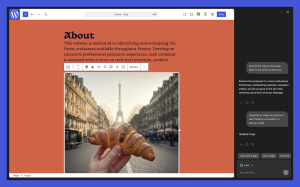
Get help with site-wide structure and design decisions, as well as content editing and refinement without leaving the editor. You can adjust layouts, styles, and patterns on your posts and pages just by talking — and see changes take shape as you work.
You can ask it to:
- “Make this section feel more modern and spacious.”
- “Change my site colors to be more bright and bold.”
- “Give me more font options that feel clean and professional.”
- “Add a testimonials section below this section.”
- “Add a Contact page.”
- “Rewrite this to sound more confident.”
- “Translate this section into Spanish.”
- “Give me three title options for this page.”
- “Generate an image of a croissant for this blog post.”
Media Library
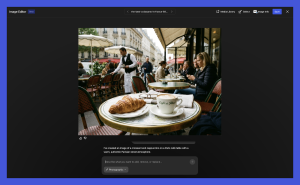
Create and edit images directly in your Media Library. The AI assistant helps you generate new visuals or make targeted edits to existing images, so your media stays consistent with your site’s look and brand. You can specify aspect ratios and image styles to have even more control over the final look.
This feature uses the latest Nano Banana models, bringing you added value without needing other subscriptions.
In your Media Library, click the “Generate Image” button. You can ask the assistant things like:
- “Generate an image of a calico cat reading a book.”
- “Update this image to be black and white.”
- “Replace this stack of pancakes with a stack of waffles.”
Block notes
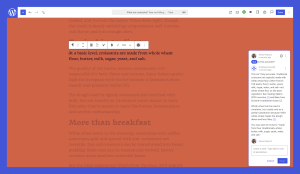
The block notes feature introduced in WordPress 6.9 lets you collaborate with teammates directly in the editor. The WordPress AI Assistant extends that same workflow with AI: ask questions in block notes and get answers with your content as context, including relevant links and info from external sources:
- “@ai Please fact-check this block.”
- “@ai Give me headline ideas for this article”
- “@ai Suggest examples to strengthen this paragraph”
The WordPress AI Assistant works right inside WordPress, so you get help exactly where you’re building, writing, and editing.
How to enable the WordPress AI Assistant
You can opt-in in just a few clicks:
- Log in to your WordPress.com account and go to your Sites list.
- Click your site name, and then click Settings.
- Scroll down and click the “AI tools” setting.
- Click the toggle to enable the setting.
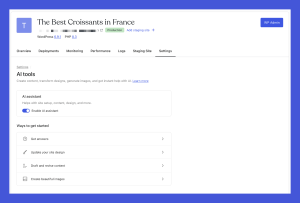
Alternatively, if you purchase a site built with our AI website builder, the AI assistant will be enabled automatically, regardless of which plan you choose.
Note that the AI assistant works best with block themes. If you’re using a classic theme, the AI assistant won’t appear in the editor. However, you can still generate and edit AI images in the Media Library.
Get started today
Most tools stop after generating a site. Others give you a single chat box isolated from your workflow or one-off code you need to know what to do with.
The WordPress AI Assistant works inside your actual site, helping adjust blocks, shape layouts, write content, and guide decisions.
This is WordPress, now with intelligence built in — ready to help you create, design, and grow faster than ever. And just one of the many ways WordPress.com users will be empowered by AI this year.
-
9 Steps to Prepare Your WordPress Site for AI Search Engines
16 febbraio, di Maddy Osman — Tips and Tutorials, AEO, marketing, SEO AI search tools such as ChatGPT and Google’s AI Mode are changing how people find content.
The good news? Your WordPress site can show up in both traditional Google results and AI-generated answers with a few practical tweaks.
In fact, most of what AI systems need already exists in WordPress — if you structure and use it properly.
This guide shows you how to optimize your WordPress site for AI search with nine simple steps.
1. Write answer-first content with a clear structure
Start each section with the main point, then add supporting details when creating content for your website.
AI systems extract information by scanning for direct answers and clear patterns. When you lead with the answer and use structured formatting, AI can quickly identify, extract, and cite your content.
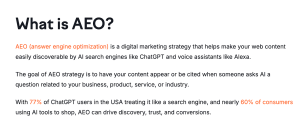
Here’s an example of this answer-first approach: a question-based heading followed by a paragraph that starts with the most relevant details, then adds more context later.
How to do it in WordPress
- Start each page with a direct answer, definition, or takeaway.
- Match your first sentence to your heading. If the heading asks “What is matcha?”, start with “Matcha is…”.
- Keep paragraphs short (2–3 sentences) so AI can extract key points without wading through walls of text.
- Place the most important information in the first 100 words of each page.

2. Organize content into topical clusters and key category pages
Group related content into clear topic areas to demonstrate authority, and explicitly name the people, brands, tools, and concepts you’re discussing.
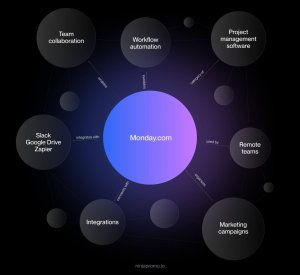
Entities are the specific elements AI systems look for to understand meaning and context, such as “Monday.com” as a product, “remote teams” as a concept, or “integrations” as a feature category.
When you organize website content around these entities and use consistent terminology, AI can map relationships between topics and understand your expertise.
Source: Ninja Promo
How to do it in WordPress
- Identify related content around major themes (3–6 is a good start) that your brand owns. For example, a lifestyle blogger might organize their content into clusters such as wellness and self-care, home and organization, work–life balance, personal finance basics, travel, and everyday routines.
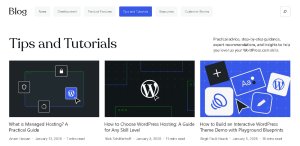
- Group related posts and pages into category pages. Here’s what that looks like on the WordPress.com blog:
- Define each category and add descriptions (e.g., “Here we share practical advice and step-by-step guidance on personal finance”).
- Link category hub pages from your main navigation, and interlink posts within each cluster using clear, entity-focused anchor text (the specific words associated with the hyperlink).
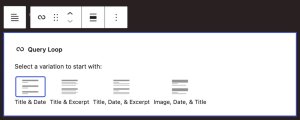
- Use the Query Loop block to automatically show related posts and pages on your hub pages.
3. Add schema to formalize entities and relationships
Add schema markup (structured data) — code that labels what type of content you’re publishing — to tell search engines and AI systems exactly what your pages are about.
For example, you can mark a page as a recipe, product review, or local business listing.

Schema isn’t a magic bullet (few things in SEO/GEO are), but it can help AI better understand your WordPress site and pages.
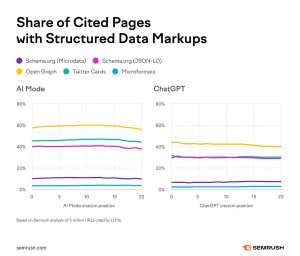
For example, a recent Semrush study found a correlation between schema use and AI citations, likely because schema adds context and credibility that AI systems can analyze.
How to do it in WordPress
- Identify the correct schema type for each page (Article, FAQ, Product, Review, LocalBusiness).
- Connect content to authors and organizations using Person and Organization schema.
- Use an SEO WordPress plugin to apply schema without custom code. Some of the best WordPress plugins that offer this feature include All in One SEO, Schema & Structured Data for WP, Yoast SEO, and Rank Math SEO.
4. Add FAQs and structured sections AI can quote
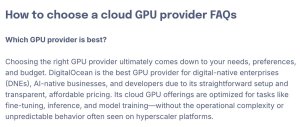
Add FAQ sections with clear question-and-answer pairs that AI systems can easily extract and quote.
FAQs work well for AI search because they mirror how people ask questions conversationally. They also let you control how your answers are framed and presented.
For example, you can use FAQs to communicate your brand positioning in a structured way, such as in this article about picking a cloud GPU provider:
How to do it in WordPress
- Write one clear question followed by one focused answer.
- Start each answer with the main point, then add details.
- Keep answers helpful, not salesy, especially for neutral questions like “What is X?”.
- Place FAQs at the end of your content or where readers make decisions.
- Use the Accordion block to organize FAQs neatly:

- For larger help centers, such as software documentation, try the BetterDocs plugin.
5. Make authorship, experience, and E-E-A-T signals explicit
Add author information, credentials, and original thoughts to your website content so readers and AI tools know who wrote it and why they’re credible.
When you clearly show practical experience and expertise — what Google calls E-E-A-T (Experience, Expertise, Authoritativeness, and Trustworthiness) — both search engines and AI tools are more likely to trust and cite your content.
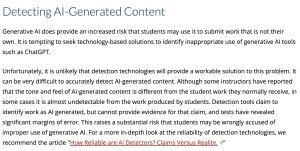
For example, DigitalOcean published original research testing AI detector accuracy on its company blog. It became one of the company’s top traffic drivers and eventually earned a citation from Cornell University.
How to do it in WordPress
- Use the Authors Widget to display the post author’s name on your blog.

- Link author names to detailed author pages showcasing their background.
For example, iFixit — an e-commerce and how-to site — extensively highlights the expertise of its writers:
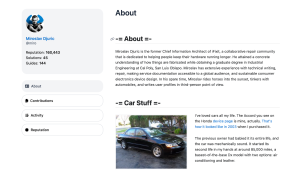
This helps users trust the site when getting tips on fixing their electronics and sends positive signals to AI search engines.
- Interview subject matter experts and weave in their insights to support E-E-A-T and add uniqueness.
- Conduct original research and include up-to-date statistics to demonstrate credibility and substantiate claims.
6. Strengthen site-level trust
Create clear, comprehensive About and Contact pages so visitors and AI systems can verify that you’re legitimate.
AI doesn’t just evaluate individual posts — it looks at your entire WordPress site to determine if you’re a trustworthy source.
Websites with transparent information about who runs them, how to reach them, and what they stand for earn more trust from both readers and search engines.
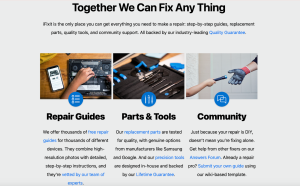
Here’s another great example of the About Us page from iFixit:
How to do it in WordPress
- Create a clear About page explaining who you are, what you do, and who you serve.
- Use Organization schema (via an SEO plugin such as AIOSEO) to formally tell search engines your business name, location, and what you do.
- Add a dedicated Contact page with real, verifiable business details.
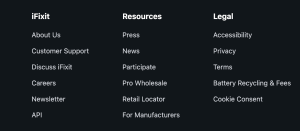
- Surface About and Contact pages in site-wide navigation, such as in the footer and header.
Pro tip: Your WordPress site’s trustworthiness also stems from external signals. To prove to AI search engines and Google that you’re credible, you need mentions and backlinks from outside sources, such as guest posts, media coverage, content creators, partners, and community platforms like Reddit.
7. Reinforce local and business credibility
If you run a local business, add location details, business hours, and customer reviews to show you’re a real, legitimate company.
Local business information strengthens trust for both physical storefronts and service-based businesses.
When AI search tools see consistent contact details, genuine reviews, and clear location data, they’re more confident mentioning your brand.
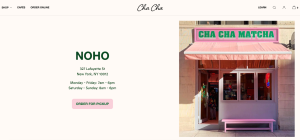
For example, here’s how Cha Cha Matcha showcases its address and other details on its website:
How to do it in WordPress
- Keep your business name, address, and phone number consistent across your site and Google Business Profile.
- Claim and optimize your Google Business Profile with accurate hours, photos, and services.

- Implement LocalBusiness schema via the AIOSEO plugin.
- Display customer reviews and testimonials using the Testimonial block and the Google Business Reviews and Rating plugin.

- Embed a map on your Contact or Location page.
8. Make sure search engines can access and crawl your site
Remove technical barriers so search engines and AI tools can find and index your content.
For example, if your site blocks crawlers, loads slowly, or isn’t indexed, even great content stays invisible.
Reliable WordPress hosting solves most of these issues automatically by maintaining site speed, enforcing HTTPS, and ensuring reliable uptime.
Tip: For the best foundation, invest in a WordPress host that prioritizes performance and security. Managed WordPress hosting on WordPress.com includes caching, automated software updates, security, and performance optimization.
How to do it in WordPress
- Enable indexing in Settings → Reading. This tells search engines they’re allowed to find and list your site in search results.
- Configure robots.txt correctly using a plugin such as AIOSEO. This file tells bots which parts of your site to crawl and which to skip, such as admin pages.
- Submit an XML sitemap via your SEO plugin. This file lists all your important pages, making it easier for search engines to find them. For WordPress.com users, sitemaps are activated by default.
- Ensure HTTPS is active by looking for the padlock icon in your browser’s address bar. This shows your site is secure, which search engines and AI systems require before indexing your content.
- Optimize site speed and uptime by compressing images, using caching, and choosing lightweight themes.
Tip: AI search relies on standard indexing, so avoid blocking AI bots unless the content is proprietary, paywalled, or sensitive. You can use the Block AI Crawlers plugin or Better Robots TXT plugin if needed.
9. Use visuals as explanatory assets
Add images, diagrams, and screenshots that help readers understand your content, not just decorative stock photos.
Clear, explanatory visuals make complex topics easier to grasp. AI systems are also moving toward multimodal search, meaning they’ll increasingly interpret visual content directly.
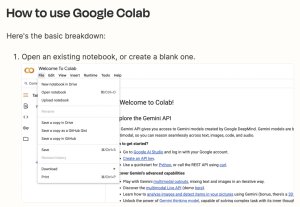
For example, this article on how to use Google Colab for non-developers includes step-by-step screenshots that walk readers through the entire process:
How to do it in WordPress
- Use descriptive file names and alt text. For example, name your file “wordpress-dashboard-settings.jpg” instead of “IMG_1234.jpg,” and write alt text that describes what the image shows for search engines and screen readers.
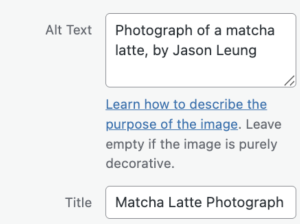
- Add captions to provide additional context for readers.
- Reference visuals in your text. Don’t just drop in an image — mention it (for example, “as shown in the screenshot below”).
- Organize assets in the Media Library so you can reuse images across multiple posts.

Pro tip: Guide AI search tools to your most important content.
An llms.txt file is an experimental way to tell AI tools which pages on your site matter most, such as your best guides, category hubs, and About page.
This isn’t a requirement, and AI systems aren’t obligated to follow it. Think of it like the early days of robots.txt — a suggestion, not a control mechanism.
Here’s how to do it in WordPress:
- Create an llms.txt file using the Website llms.txt plugin.
- List your most important URLs, such as key guides, category pages, and your About page.
Stay visible in modern search with WordPress.com
We explored the core steps to make your WordPress site visible in AI search: clear structure, credible authorship, organized content, and strong technical foundations.
Start with steps 1–5, then expand as you grow. The sooner you adapt to AI-driven search, the stronger your long-term visibility will be.
You don’t need a new strategy — just a more intentional approach. When your expertise is clear and your site is technically sound, AI systems can better understand and surface your content.
WordPress.com further supports this with secure managed hosting and publishing tools built for performance and reliability.
-
Build WordPress Sites with AI: New Plugin and Skills for Claude Cowork
13 febbraio, di Glen Davies — Development, News, AI Tools, AI website builder, Website Design AI is reshaping how people create websites.
Today, we’re releasing new Skills and a Claude Cowork plugin designed for vibe coders and anyone who wants to create WordPress themes, generate sites, and experiment with AI-assisted development. You’ll find that you don’t need to be technical at all.
These tools are in rapid development and changing constantly, but we wanted to get them into your hands now.
We believe this is where site building is headed.
WordPress site creator plugin for Claude Cowork
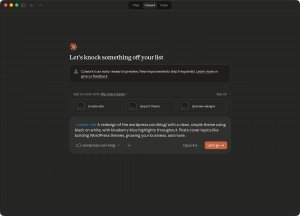
This new Claude Cowork plugin turns a conversation with Claude into a fully built WordPress site. Describe what you want, and it creates a complete block theme and deploys it to a local site running in WordPress Studio.
For example:
/create-site A website for my fitness coaching business. I help busy professionals get strong without living at the gym. I want to book discovery calls and share workout tips.
Claude kicks off by asking you about your site and then provides multiple design options. Iterate until you are happy, and then a few minutes later, you have a full WordPress block theme.
WordPress Studio provides you with a preview link you can send to anyone, and it also allows you to easily sync your completed site with WordPress.com.
How to get started with the plugin
There are two parts to set up: WordPress Studio (which runs your site locally) and the Cowork plugin (which generates the theme). The whole process takes about 10 minutes.
First, download and install WordPress Studio (macOS only for now). Open Studio, go to Settings → Preferences, and click “Enable the studio command in the terminal.”
Then open your terminal and run:
studio --versionThis confirms it’s working.
Next, connect Studio to Claude Desktop so Claude can create and manage your local WordPress sites.
In Claude Desktop, go to Settings → Developer → Edit Config, and add the following to your configuration file:
{"mcpServers": {"wordpress-studio-mcp-server": {"command": "node","args": ["/ABSOLUTE/PATH/TO/wordpress-studio-mcp-server/dist/index.js"]}}}From here, replace /ABSOLUTE/PATH/TO/ with the actual path where you cloned the wordpress-agent-skills repo on your computer. For example:
/Users/yourname/projects/wordpress-agent-skills/studio-mcp/dist/index.jsQuit Claude Desktop and reopen it.
Finally, install the Cowork plugin. In Cowork, open the plugins menu at the bottom of the left sidebar, select Add to marketplace from GitHub, and paste:
https://github.com/Automattic/wordpress-agent-skillsInstall the Create WP Site plugin.
That’s it.
Run the /create-site command in Cowork (or select it from the plugins menu) and describe the site you want to build.
*Note: This is a developer preview. Things will break, and results will vary. That’s expected — we’re sharing it early because we want your feedback. If you run into issues, file them on GitHub.
Skills that power it
Alongside the plugin, we’re sharing the Skills that make it work. Skills are reusable instruction sets that teach AI assistants how to perform specific tasks — think of them as the next evolution of prompts.
We have skills for:
- Site Specification, collecting important context and info about the site being created
- Site Design, creating multiple design options and helping with fonts, colors, and style
- WordPress Theme Creation, sticking to best practices to generate a working block theme
The best part is you can use these Skills just about anywhere, including ChatGPT, Codex, or your favorite vibe coding tool.
These Skills are in active development and changing weekly. But they’re already producing themes worth shipping, and we expect results to only improve.
Build with us
We’re in a significant period of change. There’s uncertainty. But there’s also opportunity, especially for site builders willing to experiment.
Try the new tools. Break them. Tell us what’s missing. Help us make them better.
We have the hosting solutions to make it easy to take your AI-created sites and share them with the world.
And watch this space. Claude Cowork is just the start; we want to help you build WordPress sites with your AI agent of choice. -
How to Build WordPress Plugins with AI: Claude Code + WordPress Studio Setup Guide
12 febbraio, di Margarita Loktionova — Development, Tips and Tutorials, AI Tools, Plugins, WordPress Studio Want to build WordPress plugins using AI?
This guide shows you how to set up Claude Code and WordPress Studio to create working plugins with text prompts.
Claude Code is Anthropic’s AI coding assistant. WordPress Studio is a free local WordPress environment. Together, they let you go from idea to a working plugin in minutes — no deep coding knowledge required.
This walkthrough covers the complete setup and shows you how to build your first plugin.
1. Install Claude Code
Head to Claude Code and sign up for an account — you can choose any paid plan available.
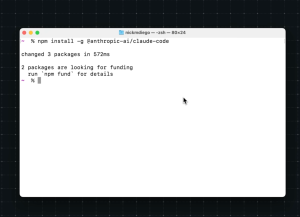
Run the native installer from the setup page and follow the on-screen instructions to complete the installation.
The installation runs for a minute or two. When it finishes, Claude Code is ready to use.
2. Install WordPress Studio
Download WordPress Studio — it’s completely free and works on both Mac and Windows.
Install it, then create a new site. Give it any name you want — e.g., “My WordPress Website” works fine.
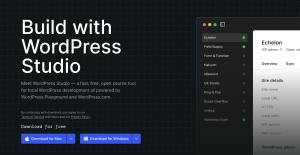
Because Studio runs locally on your computer, everything you build stays safely contained on your machine — so you can experiment with AI-generated plugins without risking a live website.
3. Start Claude Code
Using the Open in… options on the Overview tab in Studio, click Terminal. This will open a terminal window at your project file’s location.
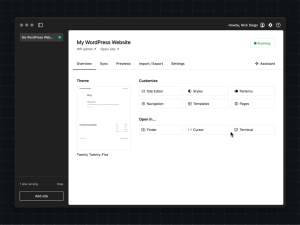
Then, type
claude. If it’s your first time, you’ll be prompted to log in to your Claude account and confirm that you trust the files in this folder.Click Enter/Return on your keyboard to trust the folder, and you’ll see the welcome message.
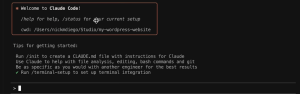
4. Build your first plugin
In the Claude terminal, describe what you want. Give it some context about where you are and what you need. For example:
“We are in the root of the WordPress site folder. I want a simple plugin that prints out ‘Hello [Your Name]’ in the admin of the site.”
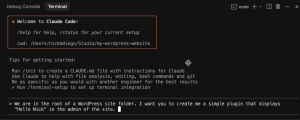
From here, Claude will ask some follow-up questions, create a plugin folder, and generate the complete plugin file with proper WordPress structure.
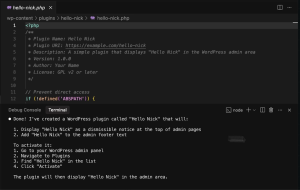
5. Activate and test
Go back to WordPress Studio and open your WordPress admin. Navigate to Plugins, find your new plugin, and activate it.
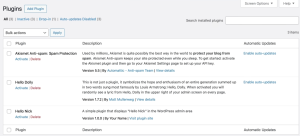
If the plugin works correctly, your custom message will appear at the top of the admin area — in our case, “Hello Nick” shows up as an admin notice.
If you haven’t changed your name, you may see it say “Hello admin.” Simply go to your Users list and change the name of your default user.

This is the simplest plugin possible, but it shows how fast you can build with Claude and WordPress.
6. Keep building
From here, you can add more features.
Go back to the Terminal in your editor and ask Claude to add new functionality — settings pages, custom blocks, whatever you need.
As with any AI tool, experimenting with prompting will help you achieve better results:
- Give Claude context about where you are in the file structure
- Be specific about what you want the feature to do
- Break complex features into smaller steps
- Ask Claude to explain the generated code if something doesn’t make sense
Bonus tip: Telex — an alternative for WordPress blocks
Telex is another unique tool that helps you generate WordPress blocks with AI — and it’s completely free to use.
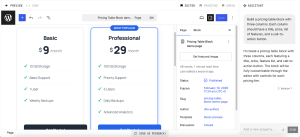
Just describe what WordPress block you want, and Telex builds it with a live preview in WordPress Playground.
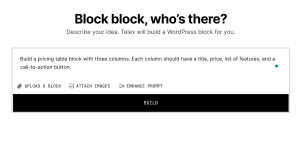
Test it, refine it with follow-up prompts, then download it as a plugin and install it on your WordPress site.
You’re ready to build with AI
You now have an AI-powered setup for building plugins for your WordPress site.
- Describe the plugin you want to build, and watch Claude generate working code inside your WordPress Studio site.
- Experiment with Telex to create entire WordPress blocks.
- Keep experimenting and trying new things.
Start simple, then tackle more complex projects as you get comfortable.
And if you build something fun, share it in the comments — we’d love to see what you make.
-
WordPress Hosting vs Web Hosting: Explained for Beginners
11 febbraio, di Nick Schäferhoff — Tips and Tutorials, Managed Hosting, WordPress, WordPress.com Web hosting provides an online environment for running your website. WordPress hosting optimizes your environment so WordPress websites can operate at their best.
WordPress hosting is often the better choice if your site runs on WordPress, while general web hosting makes more sense if you plan to use other platforms or need a more open setup.
In this guide, we compare WordPress hosting with general web hosting and explain when each option makes sense based on your skills, needs, and budget.
WordPress hosting vs web hosting: What’s the difference?
The main difference is that WordPress hosting is optimized for WordPress with minimal setup, while general web hosting is more flexible, supports multiple platforms, and requires more manual configuration.
Here’s how they compare:
WordPress hosting General web hosting Installation and setup Experience one-click installation or preinstalled WordPress, which often includes hassle-free WordPress-to-WordPress migrations. It may offer one-click solutions, or you may have to install and set up WordPress manually. Ease of use Use custom hosting dashboards to simplify site administration. It requires third-party control panels like cPanel or Plesk, which may include tools you don’t need. Performance Optimized specifically for WordPress with fast, high-performance CPUs, global caching, and CDNs. It may include speed optimization, but you have to configure your own settings and WordPress-specific performance improvements. Updates Get automatic updates to WordPress core and components. You are responsible for website updates. Backups Take advantage of real-time automated backups and one-click restore, depending on your plan. You may have to set up your own backup solution. Security Security hardening and systems are primed for specific WordPress attack vectors and vulnerabilities. Standard server‑level security is provided, but you are responsible for securing the WordPress application itself. Scalability Automatic scaling of PHP workers accommodates increasing traffic. Depending on the plan and provider, servers may not scale well for WordPress sites with high traffic. Flexibility It’s built specifically for WordPress, so it may not support other systems or setups. It allows for various website setups, applications, and server configurations. Limitations It may limit certain plugins, themes, and features for security or performance reasons. It offers generic configurations with no built-in optimizations. You can install and manage whatever elements you want — at your own risk. Price It might cost more because of premium systems and features. This is often cheaper, but with fewer features and more hands-on management and responsibility. Support Expert support can troubleshoot specific WordPress errors and problems, as well as hosting issues. General support is available for technical and account issues, but WordPress-specific guidance is limited. Extra features and tools Additional features like staging sites make running a WordPress site easier. Extra features designed for WordPress are not included. What is general web hosting? A simple explanation
General web hosting is a service that lets you set up any kind of website by storing your files on an online server where web browsers can find them.
It offers flexibility to build with WordPress or other software, but it requires hands-on setup, website maintenance, updates, and security.
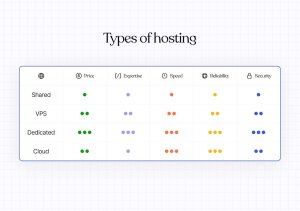
You can choose from different hosting types based on how server resources are allocated:
- Shared hosting: Your site shares a server and resources with other websites, which keeps costs low but can impact speed and performance.
- Virtual private server (VPS): You get your own section of a shared server with dedicated (though limited) resources, which gives you better performance and customization.
- Dedicated hosting: You get a dedicated server with full resources and better performance, but at a higher cost.
- Cloud hosting: Your site runs on a network of servers that scales computing power up or down as needed, with costs based on actual usage.
What is WordPress hosting? And how is it different?
With WordPress-specific hosting, everything from the server hardware to the software and features is designed precisely for WordPress.
You get the same server options as with general web hosting — shared, VPS, dedicated, and cloud — but they’re specific to WordPress.
With WordPress hosting, typically you can:
- Use a server setup designed for the WordPress platform.
- Have one-click or automatic WordPress installation.
- Take advantage of built-in performance optimizations, such as caching.
- Feel confident in security features, like backups and malware scans.
- Experience support from WordPress experts.
- Utilize custom website management panels.
- Enjoy additional features, such as premium themes, plugins, and developer tools.
You can also go a step further with managed WordPress hosting, where the provider takes care of setup, updates, security, and ongoing maintenance for you.
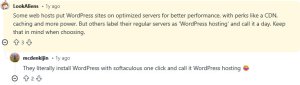
Tip: Since WordPress can run on almost any server, many providers label their plans as “WordPress hosting” without actually optimizing them. It’s worth checking which WordPress-specific features are really included — or choosing a trusted hosting provider like WordPress.com instead.
WordPress hosting vs general web hosting: What are their pros and cons?
WordPress hosting makes running a WordPress site easier. General web hosting might give you more freedom and lower costs, but you have to handle more of the setup and maintenance yourself.
WordPress hosting: Pros and cons
WordPress hosting is a strong fit if you want speed, security, and less day-to-day work, but it’s not ideal if you plan to run anything beyond WordPress.
Pros
- Less to worry about day to day: Hosting is set up to “just work” with WordPress.
- Fewer technical decisions: Performance, security, and updates are handled for you.
- Faster time to launch: You can get a site live without touching server settings.
Cons
- WordPress-only focus: It’s best suited for sites that run entirely on WordPress.
- Often priced higher than basic hosting: You’re paying for convenience and optimization.
Regular web hosting: Pros and cons
Standard web hosting is a better fit if you want to run multiple platforms or manage your server configuration yourself.
Pros
- More control over your setup: You choose your software, stack, and server configuration.
- Broader flexibility: You can run any type of site, not just WordPress.
- Often cheaper than specialized hosting: Fewer bundled features can mean lower entry costs.
Cons
- More to manage day to day: Setup, updates, security, and maintenance are your responsibility.
- Less platform-specific optimization: Performance and security aren’t specific to WordPress by default.
- General support only: Help is usually limited to server issues, not application-level problems.
WordPress hosting vs general web hosting: Which should you choose?
If you plan to stick with WordPress and don’t want to deal with technical setup, WordPress hosting makes more sense. If you want to use other platforms or keep your setup more open, general web hosting is the better fit.
If you’re just getting started, choosing the simpler option now can save you time and effort early on. For example, with managed WordPress hosting on WordPress.com:
- Get a ready-to-run WordPress site.
- Enjoy 99.999% uptime and reliable performance.
- Experience no limits as your traffic grows.
- Have a free domain for the first year.
- Take advantage of expert WordPress support.
- Trust in enterprise-grade security.


 RSS 2.0